


Google Analytics is one of Google's free tools and the most popular one for Website
analysis.
With Google Analytics, we can see our Site's traffic, the volume of users who may be on it in real time, where they're visiting us from, and how our users behave while browsing the Site.
It also lets us analyze any type of Site, whether it's a Blog, a platform, etc.

What Is Google Analytics Used For?
It helps us measure the traffic being generated on our Website:
- Analysis tool: You can generate reports very easily to understand all the data it gives us and understand the visitors to our Site
- Content analysis: You can generate reports that show us which pages of our Site perform better or worse.
- Exit Pages: Within Analytics, there is a tab called “Site Content” that shows us what our visitors do after leaving.
- Social media analysis: It measures our company's behavior and impact.
- Mobile device impact analysis: It allows us to measure data from the mobile devices that visit our Website.
With Google Analytics, we can get the most out of our Website, since it's the best analytics tool for understanding every aspect of our Site, both negative and positive.
How to Create a Google Analytics Account
To create our Google Analytics account, we need a Gmail account, or our business email must be hosted on Google's Servers.
- We go to google.com/analytics and click Sign In to Google Analytics.

We sign in with our email address.

We click the Sign Up button

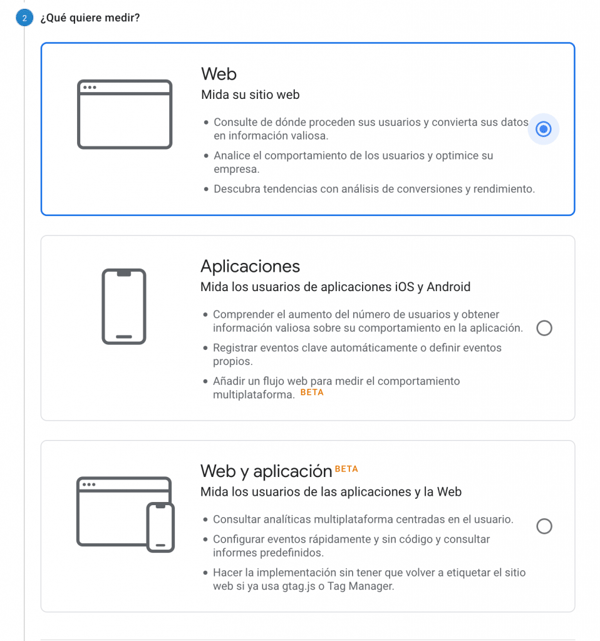
Create account
- Account name: This is the name that will identify it among all the accounts we have under the email we're registering in Google Analytics.
With a single email registered in Google Analytics, we can have up to 100 accounts
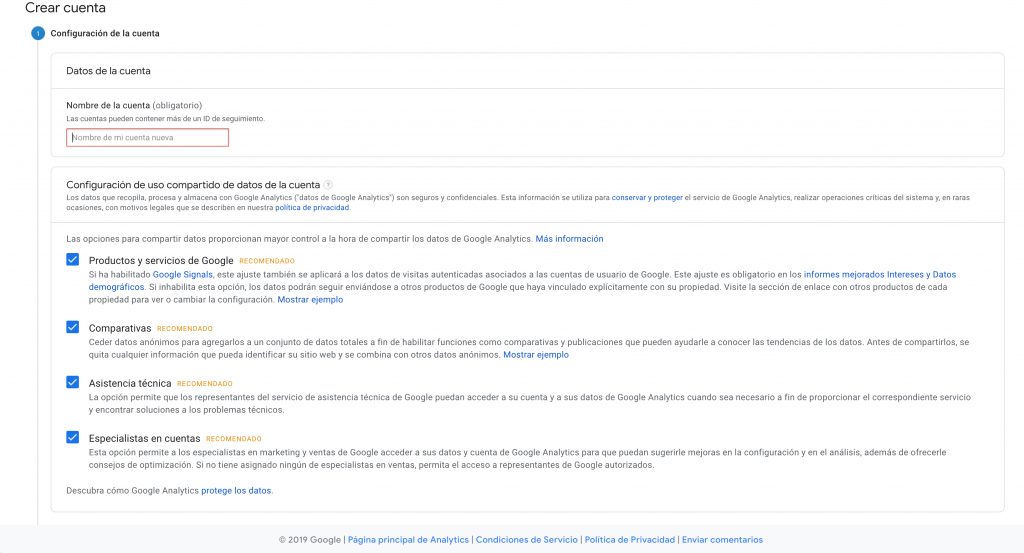
- What do you want to measure? Google Analytics will ask us to choose what we want to measure, such as: Website, Apps, and Website and App (Beta version).
- Website:
- It lets us see where our users come from and turn their data into valuable information for our company.
- Analyze our users' behavior and optimize our company.
- Discover trends with an analysis of the conversions and performance our users generate.
- App:
- It will help us understand the growth in the number of users and gain valuable insights into their behavior in our app.
- Log key events automatically or define your own events.
- Add a web stream to measure cross-platform behavior. (Beta version)
- Website and App:
- View user-centric cross-platform analytics.
- Set up events quickly and without code, and view predefined reports.
- Implement it without having to retag the website if it already uses gtag.js or Tag Manager.
- Website:
Property Setup
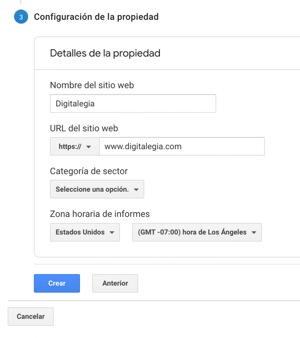
- Site Name: the name of the website we want to analyze with Google Analytics.
- Website URL: We'll enter our Website's URL as it appears in our browser.
- Industry Category: We have to select the category that most closely matches the industry of our Site or Company. This allows Google to compare the companies in the sector we're in.
- Reporting time zone: We select the region we belong to. This setting is very important for collecting Google Analytics reports.
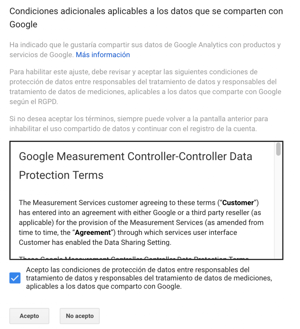
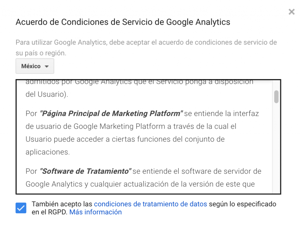
Google Terms of Service Agreement
To enjoy these benefits, we have to accept the terms of service for the country we're in.
Tracking Code
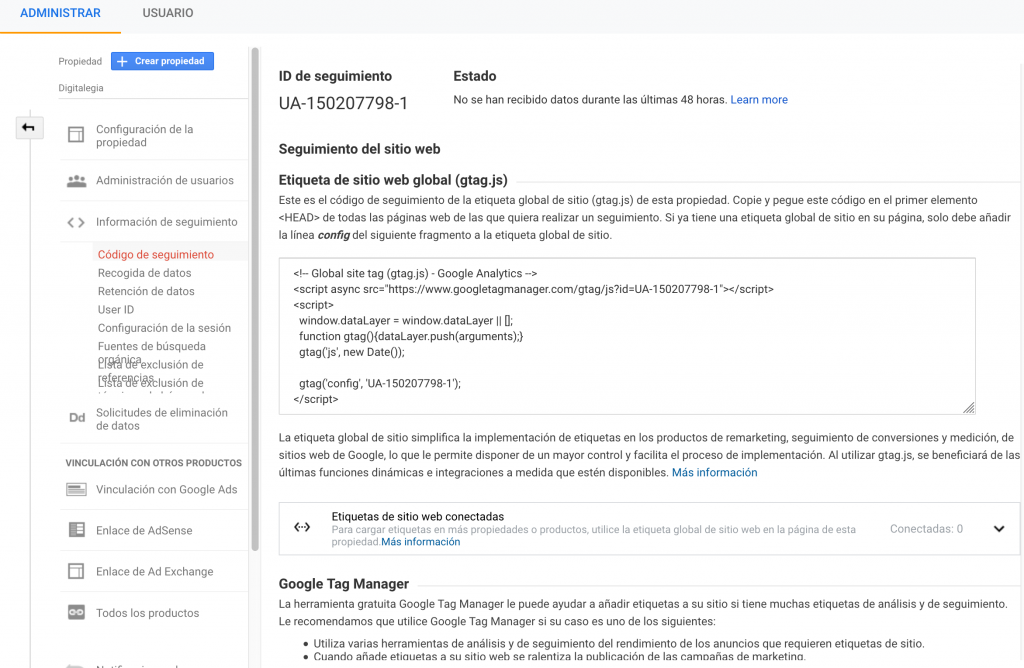
Finally, we'll see that Google Analytics gives us a tracking code that we have to insert on every page of our Website. If our Site is built with a Content Management System or CMS, such as Joomla, WordPress, etc., there are many Plugins that make the job easier for us.
Now we can enjoy all the features Google Analytics has for us and optimize our Sites as much as possible.

Don't forget to share this post!
