


Recently, Clubhouse, an invitation-only audio social media app, has reached viral levels of notoriety.
In just a few weeks, Clubhouse, which lets its members host and participate in audio chat rooms, has gone from 600,000 to 10 million active users, has earned a $100 million valuation and has hosted some of the world's top thought leaders.
Because of Clubhouse's growing notoriety, its popularity and its chat-style interface, brands interested in building communities are increasingly curious about how they could use it in their marketing strategies.
However, since Clubhouse is still an invitation-only service and isn't available to Android users, many marketers are only now logging on for the first time. And, as with any other social media app, learning all of Clubhouse's features (and trying to catch up with its early users) can feel a bit overwhelming.
If you just received your Clubhouse invitation (or want to be ready to use the app when you do), read this guide to learn how to set up your account, follow others and attend or host your first audio chats (also known as "chat rooms" or "rooms").
How to Use Clubhouse
-
Find and accept an invitation.
-
Choose topics of interest and follow other users.
-
Set up your profile.
-
Take a stroll through the home page.
-
Use the Explore page to find more users, clubs and rooms.
-
Join clubs.
-
Create a club.
-
Enter a room.
-
Ask to speak.
-
Add friends to a room.
-
Leave a room.
-
See upcoming rooms.
-
Invite friends.
1. Find and Accept an Invitation.
For now, Clubhouse is still an invitation-only service and is only available to iPhone users. Luckily, thanks to its growing audience, you may have a friend or colleague who's already on it and willing to give you one of their invitations.
If you're not sure you know anyone on Clubhouse, you can sign up for an account in the app. Once you've set up a basic profile, provided your contact information and selected some topics you're interested in (as I explain in step 2), you'll see a screen saying that you've joined the waitlist.
From there, your contacts who are on Clubhouse will get a notification that you've joined the waitlist and can give you an invitation so you can become a full user. This is a text I received from Clubhouse when my friend invited me to join the social network.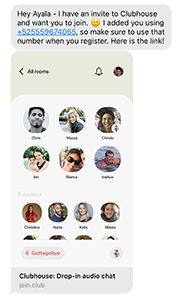
When you receive an invitation from someone, make sure you sign up with the phone number the invitation was sent to; otherwise, the app might not register that you're the same contact.
When you sign up, you'll be asked to add an email address. You'll also need to choose a photo, a username and a password. You can also connect your Twitter so that the same username, photo and profile information are copied over to Clubhouse.
2. Choose Topics of Interest and Follow Other Users.
After providing your basic information during sign-up, you can also choose the topics that interest you most from a long list to help personalize the content the app will suggest to you.
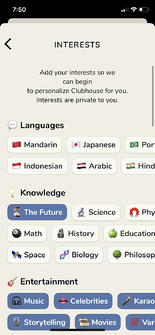
Next, Clubhouse will ask for access to your contacts and will use your topic preferences to suggest both people you may know and influencers you might want to follow.
If you don't want to select any topics or follow anyone yet, that's fine. You can do all of these things later.
3. Set Up Your Profile.
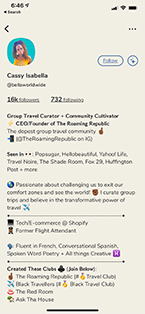
If you haven't linked your Clubhouse account to Twitter so that a profile is generated automatically, you can set it up by adding or changing your photo and writing a description that says who you are, your interests, the companies you work for or your industries.
Although we're not sure that your profile description optimizes your page for the app's search function, it will be useful for potential followers to see when they decide whether or not to follow you.
Finally, you can complete your profile by linking Twitter and Instagram. Once you do, the Twitter and Instagram icons linked to your profiles on those channels will appear below your description.
Here's a great profile example from Cassy Isabella, a prominent influencer, entrepreneur and travel expert on the platform:
4. Browse the Home Page
Once you're ready, start exploring. The first place you should visit is the Clubhouse home page. Although there's no icon for it, you can access it by tapping the back button in the top-left corner of any other page in the app.
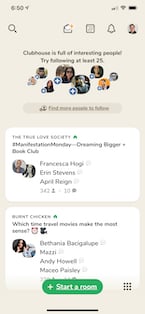
5. Use the Explore Page to Find Other Users, Clubs and Rooms.
Not interested in what you see on your home page? Tap the magnifying glass icon to see the Clubhouse Explore page.
From there, you can get suggestions of people to follow and click on certain topics to see ongoing rooms, people or clubs related to them.
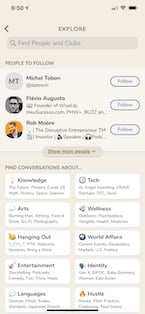
You can also use the search function on this tab to look for specific users or clubs, which we'll talk about in the next step.
6. Join Clubs.
Clubs are groups of users interested in the same specific topics, similar to the Groups feature on Facebook or LinkedIn. Once you join a club, you can see notifications for the rooms it hosts. You can also use clubs to find or connect with Clubhouse users who have similar interests.
To find clubs, you can browse the Explore tab or tap its search bar, select clubs and search for a topic, as I did with "Growth Marketing" below:
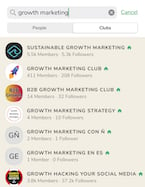
You can join a club by going to its profile page and clicking "Follow." Once you do, you'll get a notification every time its admins launch a room.

No longer interested in a club you joined? To leave it, just go to the club's page and tap the "Following" button. This will unfollow the club, and the button will go back to saying just "Follow."
7. Create a Club.
Once you've hosted three discussions, or rooms, on Clubhouse, you can start applying for clubs. To do this, go to your profile and tap the gear ⚙️ in the top-right corner to get to your settings.
From the settings page, click on the Clubhouse FAQ page, or this link to the Clubhouse Knowledge Center, where you'll find the club rules and application instructions, as well as a club application link.
Once Clubhouse approves the Club, you'll see an app notification and you'll be able to edit the club's profile and launch rooms on behalf of the Club.
Something important to keep in mind is that the Clubhouse team manually approves club applications. Because of the popularity of clubs, the company only allows one club per user at this time. This means you should be sure about the club you apply for, since it could be the only one you manage in the future.
8. Enter a Room.
When you see a room, or audio chat, that you want to join (or "drop in" on), all you have to do is tap it to start listening. When you enter a room, you'll be automatically muted as a listener. You'll also see the speakers and moderators of the room at the top of the screen.
The area of the screen that highlights active speakers is known as "the stage."
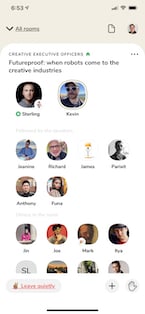
Below the "stage," you'll see the attendees the speakers follow under the caption "Followed by the speakers," and a list of general attendees under "Others in the room." All attendees who aren't on stage are muted and can't speak unless they're brought up to the stage.
If you see a party emoji (or 🎉) on someone's picture, it means they're new to Clubhouse.
9. Ask to Speak.
Want to speak? Tap the hand icon at the bottom right to be added to the speaker request list.

When you raise your hand, the moderator will be notified of your request to speak and can unmute you or simply ignore you.
If a moderator unmutes you, your name and icon will move to the stage and you can ask your question or join the dialogue. We recommend staying on topic with the points you add. You should also avoid hogging the mic, let others have time to speak and follow the room rules the moderators have set. This will help you stay marked as a speaker for as long as possible.
When you enter rooms and raise your hand, keep in mind that hundreds of other users may also be asking to speak. If you're ignored, don't take offense, since a moderator can only allow a certain number of people onto the stage before losing control of the conversation.
10. Add Friends to a Room.
Do you like the room you're listening to and want your friends to hear the discussion too? Tap the "+" button in a room's bottom navigation to select and add followers.
11. Leave a Room.
Because of the way Clubhouse is built, rooms with multiple moderators can last for hours, or even days, so there's no shame in leaving one before it ends. To do so, just tap "Leave Quietly."
If you want to browse the app a bit more without turning off the audio, you can also tap "All rooms" at the top of the screen to minimize the one you're in and move through other screens.
If you tap on another discussion, you'll automatically leave the minimized room so you don't listen to two discussions at once.
12. See Upcoming Rooms.
Don't have time to listen to a room right now, but want to explore Clubhouse later? Tap the calendar icon to see upcoming room suggestions.
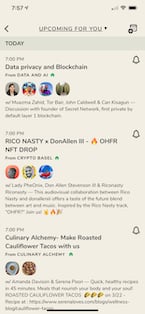
If you see a room that interests you, tap the notification symbol on it to get an alert on your phone when the event starts.
By tapping the scheduled room, you can also share it on social media or add a reminder to your calendar.
13. Invite Your Friends.
When I opened my Clubhouse account, many of my friends and I only received two invitations. Then, about two or three days later, I received three more. Although it's not clear whether everyone starts with or keeps receiving the same number of invitations, you'll probably get at least two to start.
If you have a phone contact who's eager to join Clubhouse, tap the icon that looks like an open invitation to search for and invite someone from your contact list.
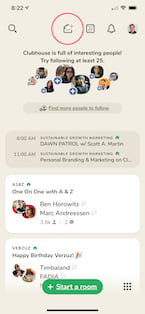
Once you invite someone, they should receive a message with instructions to join, similar to the one I showed in the first step of this list.
In addition, their profile will show that you invited them to join Clubhouse, which could help their friends or followers find you later.
Don't miss: How to Start a Room on Clubhouse.
 Based on the article by Pamela Bump.
Don't forget to share this post!